
We have changed our ordering system so you can now order in our eLearning Campus!
This gives you immediate access to your course!
(Need Help? See FAQs Below)
1. Before clicking any links, please carefully read through all the steps below.
2. Extensions and Sibling Subscriptions must be purchased here: Order Extensions and Siblings
3. If this course is for a student who does not have a login for dive.unhosting.site: Create an Account
Then come back and complete the steps below
4. If this course is for a student who does have a login for dive.unhosting.site, select this link and login to their account: dive.unhosting.site
5. In the top menu, click Store, then Shop.
6. Select the course you want to purchase for this student.
7. Click Add to Cart.
Only purchase courses for the student whose account you are logged in to. To order for a different student, you must login to their account. If they don't have one see "Create Account" above.
8. In the top right corner, click the Cart icon.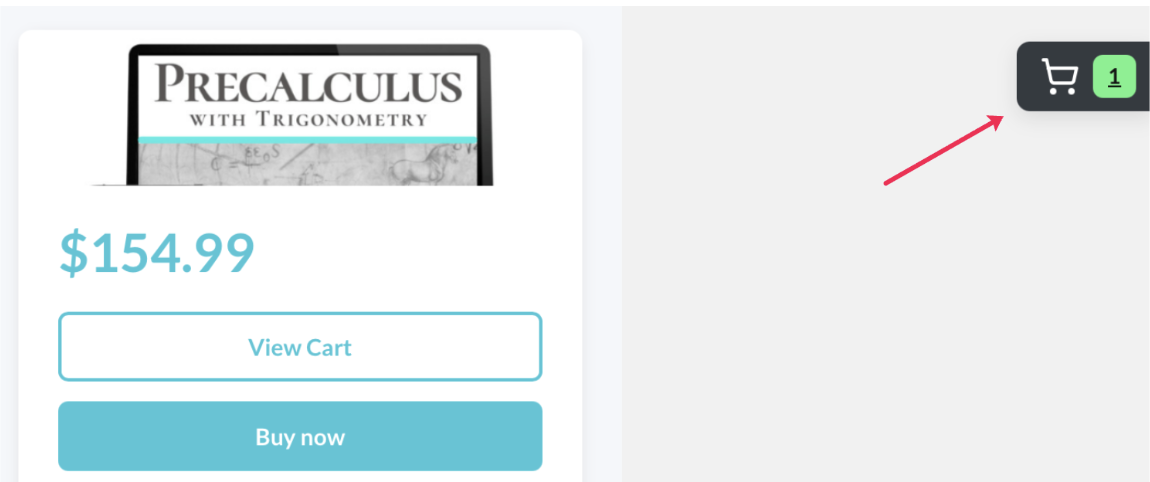
9. Important Notes:
-
- Coupon Discount: If you were NOT emailed a coupon code, disregard this field or see Coupon Codes. If you WERE EMAILED a coupon code, do not enter it here. Complete your order then, send an email to support@diveintomath.com with your order number and coupon code. We will apply a $20 refund to your credit card.
- Store Credit: Complete your order then, send an email to support@diveintomath.com with your order number. We will apply a refund in the amount of your store credit to your credit card.
- Coupon Discount: If you were NOT emailed a coupon code, disregard this field or see Coupon Codes. If you WERE EMAILED a coupon code, do not enter it here. Complete your order then, send an email to support@diveintomath.com with your order number and coupon code. We will apply a $20 refund to your credit card.
10. Click Proceed to Checkout.
11. On the Checkout page, enter the cardholder's billing information, NOT the student's information. It must exactly match the credit card account. If you are not sure, contact your bank to confirm.
-
- Email ID* *You cannot change this field during check out. Please see FAQs below.
- First Name: Enter the Cardholders First Name
- Last Name: Enter the Cardholders Last Name
- Phone Number: Enter the Parent's Phone Number
- Country, City/Town, Street Address: Enter the Billing address on your credit card account.
- Post Code: Enter the Billing zip code on your credit card account.
- Apply a Coupon: Do not enter a coupon code here. See FAQs below.
- Add A Note: Instead of entering notes here, please see FAQs below.
12. Under Payment Mode, enter the required payment details.
DO NOT CLICK "Save With" or "Autofill".
13. Click Proceed to Payment.
Please do not refresh or close your browser while the payment is processing.
14. If your payment is successful, the Order Confirmation page will appear.
If you receive an error, please see: Order Failed, Rejected, or Declined
15. Your purchased course(s) will automatically be added to your student's account. To confirm, click My Courses in the navigation menu. Your newly purchased course(s) should now be listed.
16. Parent's! It is CRITICAL that you open each of your student's courses and complete the steps under Parent Setup!!!
17. An order confirmation email is sent to the email address on the student's eLearning account.
-
- Subject: eL Order Confirmation for Order __
- From: noreply-prod-dive.unhosting.site@sitemail3.unhosting.site
- If you can't find the email, see: How to View Orders
18. OPTIONAL: To save your invoice (receipt), see: How to Download an Invoice
Frequently Asked Questions
When does the subscription start and how long is it?
Please see: When Does the Subscription Start?
Can I change the email address?
Not during checkout. However, you can change it after checking out by following these steps: Change Email Address
Can I select a future access date?
I'm so sorry! But, we no longer have that option. After purchase, the course is automatically added to your account. If you are not ready to start your subscription, wait to place your order until you are ready. Please see: How long is the subscription? Are there due dates?
When will I receive access to my course?
After your payment is successfully processed, the course is automatically added to your student's account. You can access it immediately from "My Courses".
Can I purchase a course for a different student?
Yes! Simply log in to the student's account before completing the purchase. However, if this is for a new student, please see: New Students: Create New Account
Can I purchase Sibling Subscriptions, Extensions, or other products?
No. Sibling Subscriptions, Extensions, and all other products must be purchased on DIVEintoMath.com.
I purchased a course, but I don't see it in "My Courses".
First, make sure you are logged into the same student account used to complete the purchase. If the course still does not appear, contact us at support@diveintomath.com and provide your order number, the email address used during checkout, and the course title.
I did not receive my order confirmation.
See "How do I view my orders..." below. If you would like to change the email notifications, please see: Notifications
How do I view my orders, invoices, or receipts?
Login to the student’s eLearning account at dive.unhosting.site, select "Store" in the top menu, then "Orders".
Can I use an Education Savings Account, ClassWallet, Odyssey, etc.?
Please see: How to Order
What Courses Can I Purchase in the eLearning Store?
You can purchase all full eLearning courses in the Store.

I need help placing my order.
For immediate service 24/7, see: I Need Help Placing an Order. You can also call 936-372-6299 or email support@diveintomath.com M-F from 8-5 Central Time. Please include detailed information on what you need help.
I need help with something else.
For immediate service 24/7, see: I Need Help You can also call 936-372-6299 or email support@diveintomath.com M-F from 8-5 Central Time. Please include detailed information on what you need help.